
I modified my WordPress settings for the first time in a while. I ran into several snags in the process, so here are some notes.
Links from the post list stop working with the Minimal Xpert theme.
I noticed that links had stopped working on the music site I run, 1. This was probably caused by a recent WordPress update, since the Minimal Xpert theme2 has not been updated for more than 4 years. Investigating further, I found a bug in post-entry.php. The file contains several instances of:
the_permalink(‘ ‘)
Replace all of them with:
the_permalink()
That should fix it.
I should probably replace the theme altogether by now, but it is hard to commit because there are not many similar themes. I would also have to put it before the board.
Controlling Excerpt Length
When displaying “Excerpts” in a post list, their length often differs from what you want. You can control this by editing the functions.php file of the theme you use3. Specifically, modify the st_custom_excerpt_length() function, or add it if it does not exist. Its return value becomes the excerpt length.
function st_custom_excerpt_length($length) {
return 80;
}
Configuring Stinger6
Adjusting the Height of the Home-Page Image
Many recent WordPress themes use very large images on their home pages. The intent is probably to create impact, but personally I think a little less height is better. Stinger64 is no exception.
I arrived at this after trying various things, so it needs to be verified again, but the following approach seems broadly correct. Edit #gazou in wp-contents/themes/stinger6/styles.css. I used the following. Specifying height as a percentage is intended for mobile display5 and to avoid a fixed presentation on PCs. (The color is only added for emphasis.)
#gazou {
margin: 0px 0px 10px;
height: 15%;
overflow: hidden;
}
Also, prepare a short image and select “Do not crop” when uploading it through the Customizer.
Google Analytics Settings
Configure this on the dashboard’s “STINGER Management” screen. It contains a “Google Integration Settings” section; enter the tracking ID there and save it.
Social Media Counter
Apparently, after installing SNS Count Cache, the counts begin to appear after a while. I have only just installed it, so I have not yet seen the effect.
Update: For some reason the site became extremely slow. It seems the server retrieves counts from each social network in the background, and that load is heavy. So I disabled it.
Showing a Specified Post Image When Sharing to Facebook and Elsewhere
I used the “All in One SEO Pack” plugin6 for this. The All in One SEO settings are mostly self-explanatory. Clicking the “?” for each item displays a general explanation.
However, simply installing it does not achieve the key goal of displaying a specified image from the post when it is shared. You must activate the Social Meta Feature.
Click “All in One SEO” in the left menu of the site dashboard. A submenu appears underneath. Click “Feature Manager” at the bottom, and “Social Meta” appears on the right. Activate it. A “Social” tab will then appear on each post, where you can configure the appropriate settings.
Creating an Attractive Mobile Site
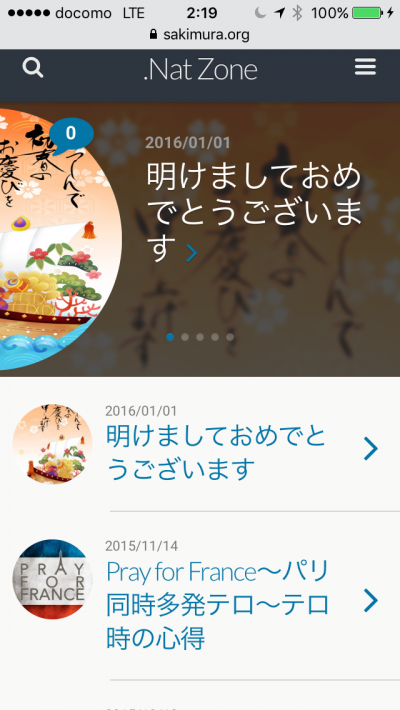
WPtouch Mobile Plugin7 looks quite good. It produces something like the image below. The Japanese on the settings screen is very difficult to understand, however; the English is straightforward. In the end, I first installed it on the English site and configured the Japanese site while looking at those settings.
Adding Wikipedia-Like Footnotes
Use the “Easy Footnotes” plugin8. Easy Footnotes displays the footnote content in a tooltip when you hover over the footnote link, which looks good. It also numbers notes automatically, of course.
After installation alone, however, a footnote in the body appears simply as 1 rather than in the Wikipedia-like form [1]. This is hard to see. You can fix it by choosing “Edit” for the plugin on the Plugins page.
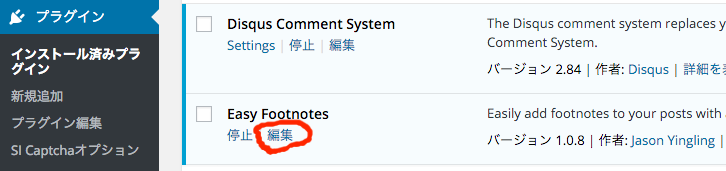
This opens the Plugin Editor screen. Find the function “public function easy_footnote_shortcode($atts, $content = null)”. It contains the following section:
$footnoteContent = “<span id=’easy-footnote-“.$this->footnoteCount.”‘ class=’easy-footnote-margin-adjust’></span><span class=’easy-footnote’><a href='”.$footnoteLink.”‘ title=’$content’><sup>$this->footnoteCount</sup></a></span>”;
Rewrite it as follows. (The color is added only for emphasis.)
$footnoteContent = “<span id=’easy-footnote-“.$this->footnoteCount.”‘ class=’easy-footnote-margin-adjust’></span><span class=’easy-footnote’><a href='”.$footnoteLink.”‘ title=’$content’><sup>[$this->footnoteCount]</sup></a></span>”;
This makes it possible to insert Wikipedia-like footnotes, as in this article.
Footnotes
- Cimbalom.org http://www.cimbalom.org/
- Minimal Xpert http://www.wpexplorer.com/minimal-xpert/
- wp-contents/themes/theme-name/functions.php
- Free WordPress Theme Stinger http://wp-fun.com/
- although this ultimately became irrelevant because I left mobile display to another plugin described below
- All in One SEO Pack https://wordpress.org/plugins/all-in-one-seo-pack/
- WPtouch Mobile Plugin https://wordpress.org/plugins/wptouch/
- Easy Footnotes https://wordpress.org/plugins/easy-footnotes/
Related posts

WordPress Is Slow!
Yesterday, attempts to access this site became so slow that they timed out, even though the traffic was nothing exceptional. php5-fpm seemed to be consuming an…

Let’s Call Japan Post’s Digi-Ad API and Retrieve an “Address.” Is It Really OAuth?
Sorry for the long gap after I became unwell. In the previous article, I obtained a Japan Post Digital Address (Digi-Ad) and used it in Japan…

X (formerly Twitter) to Remove “Like” and “Repost” Counts from the Timeline
It appears that X (formerly Twitter) will remove the counts for “likes” and “reposts” from the timeline. As of March 8, tweets in the timeline show…
You must be logged in to post a comment.