
Well then, after sleeping for about 4 hours, I tried again with a fresh mind.
 Pressing the “T” button brings up the following dialog, “Transform Wizard.”
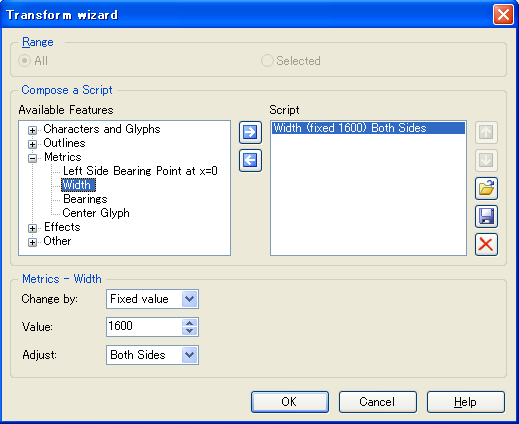
Here, choose Width as shown in the image and specify the width beneath it. At this point, the Width number in the Script area at the upper right does not change, but continue anyway. When you press OK, the Script number is also updated at that moment. A dialog warns that you cannot undo this, but continue anyway. The result now has the specified width. Trial and error is needed to obtain the desired width. Note: if you have selected any character, the operation will apply only to the selected character, so in that case choose Range=All.
Then give the Font the correct name in Tools>Auto-Naming.
Then save.
When viewed in the Mac Font Viewer, the width has changed properly. You can also check font spacing in FontEdit Preview.
This makes it possible to
create OCRBW1 and, in all, 2 types of OCRBW fonts that can be embedded in PDFs.
As a result, both Form A and Form B can now be displayed correctly. So I branched kinako mochi.
All that remains is the layout for page 2…